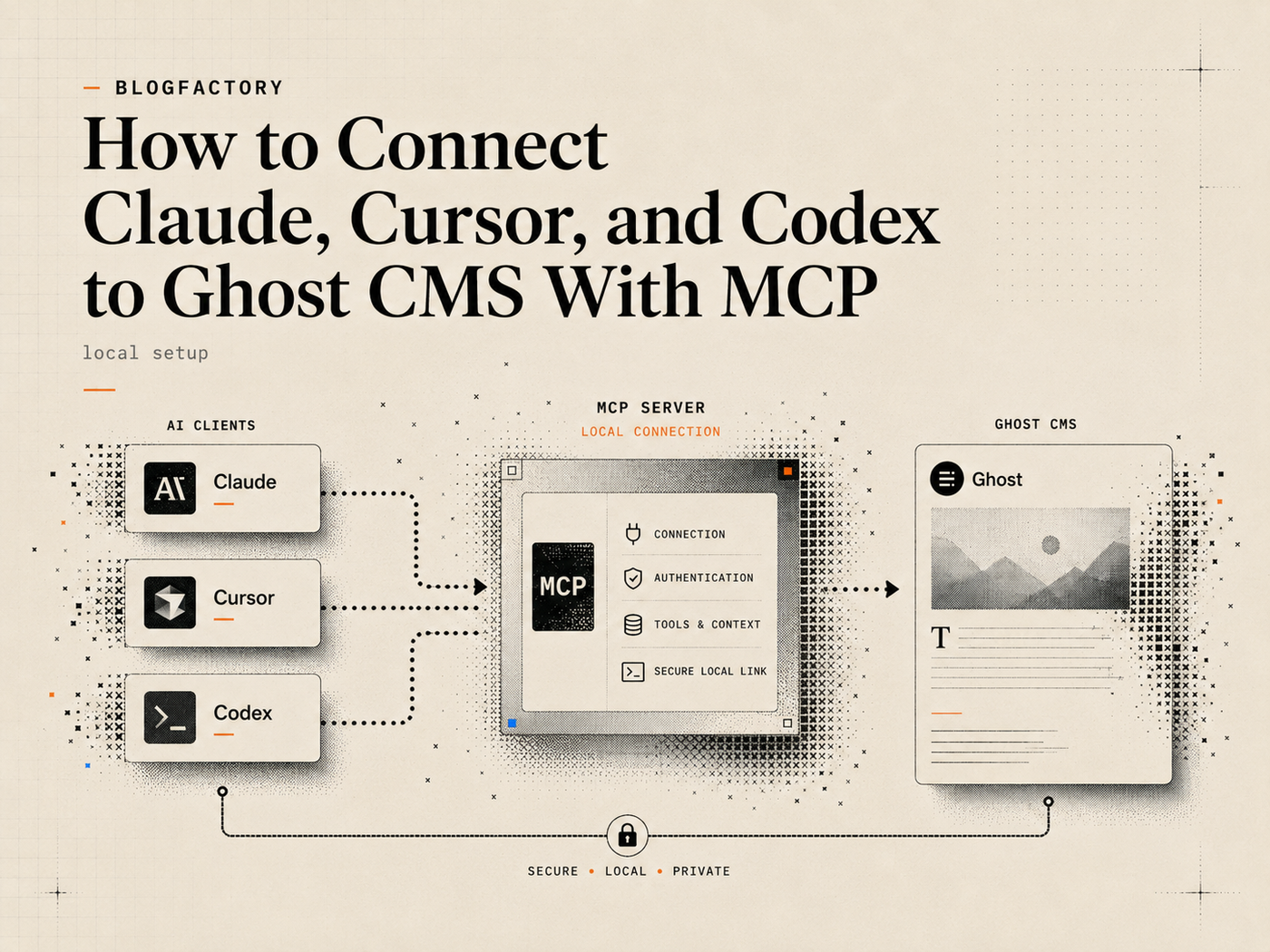
A Ghost MCP setup lets a compatible AI client work with selected Ghost CMS operations through a structured server. The client does not need the Ghost Admin API key pasted into a conversation. A local MCP process holds the configuration, exposes named tools, and returns bounded results.
The recommended first connection is read-only. Confirm that Claude Desktop, Cursor, or Codex can discover the server and reach the intended Ghost site before enabling draft creation, scheduling, or publishing.
Key points
- Create a dedicated custom integration in Ghost Admin.
- Enter the Admin API key only in a private setup prompt or secret configuration.
- Use the installer’s dry-run and read-only options before writing content.
- Review the exact configuration change before approving it.
- Restart the selected client after configuration and run a connection check.
- Expand from read-only to draft-editor, scheduler, or publisher only when required.
What you need before starting the Ghost MCP setup
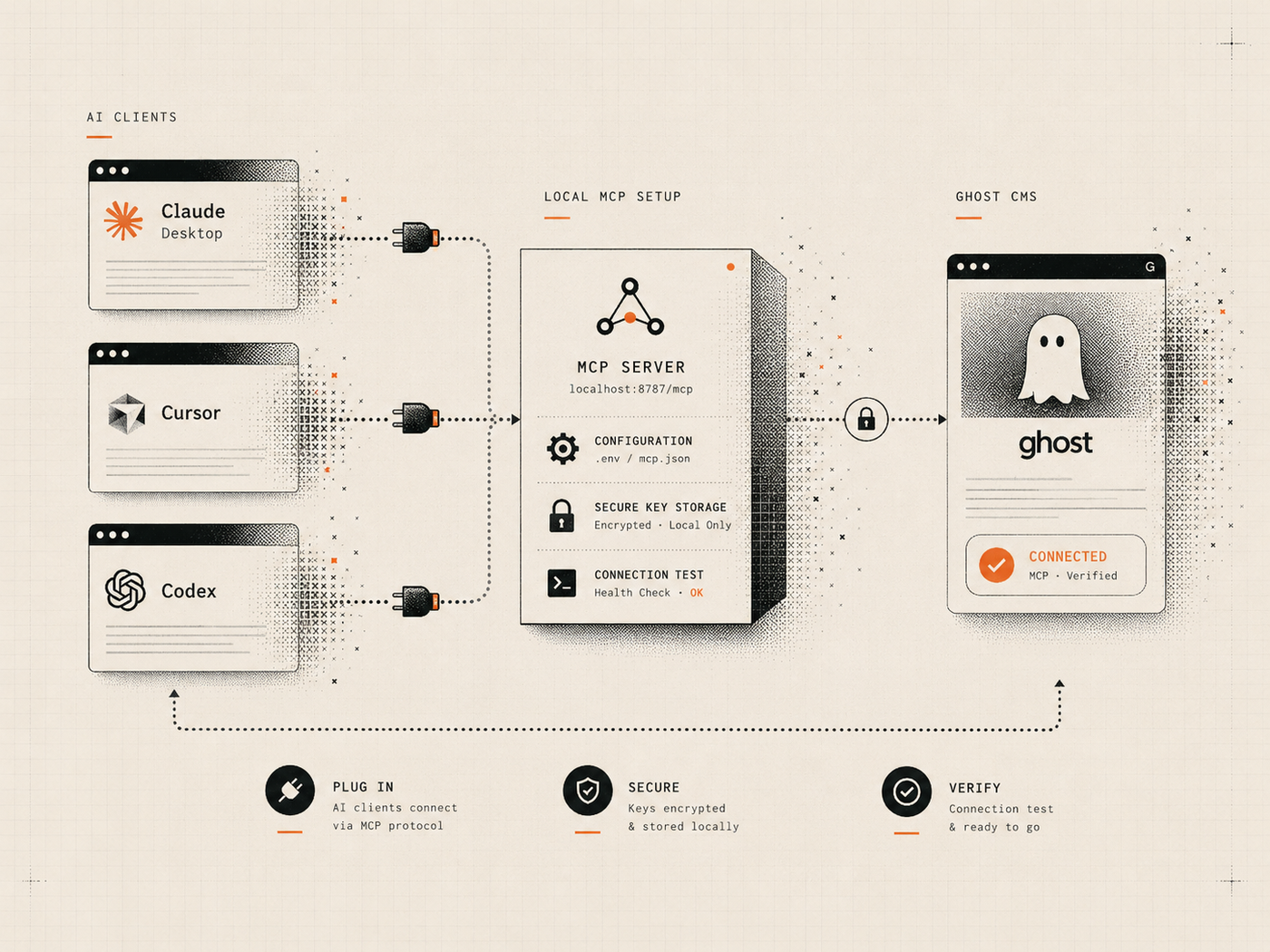
You need a working Ghost site, access to Ghost Admin, Node.js in the version required by the selected server, and an MCP-compatible client. For Ghost Publisher MCP, the current repository requires Node.js 22 or newer and provides automated configuration targets for Codex, Cursor, and Claude Desktop.[1]
You also need to decide the initial permission profile. Read-only is the safest starting point because it can verify the connection and inspect content without creating, editing, scheduling, publishing, or deploying anything.
Do not begin by copying a production key into an unreviewed package or a public configuration. Inspect the repository, package publisher, tool list, release process, and credential architecture first.
Step 1: Create a Ghost custom integration
Open Ghost Admin and create a new custom integration under Settings and Integrations. Ghost provides the Admin API URL and key required by server-side integrations. The Admin key is sensitive because it is used to generate authenticated Admin API tokens.[2]
Give the integration a name that identifies the workflow and environment, such as “Ghost Publisher MCP — Production” or “Ghost Publisher MCP — Staging.” Avoid sharing one key across unrelated scripts, contractors, and automation services.
Copy the key only when the private setup process asks for it. Never put it in a chat message, issue, screenshot, repository, shell argument, or documentation example.
Step 2: Run the one-command setup privately
Ghost Publisher MCP provides an interactive setup command:
npx -y ghost-publisher-mcp@latest setup --url https://your-ghost.example.com
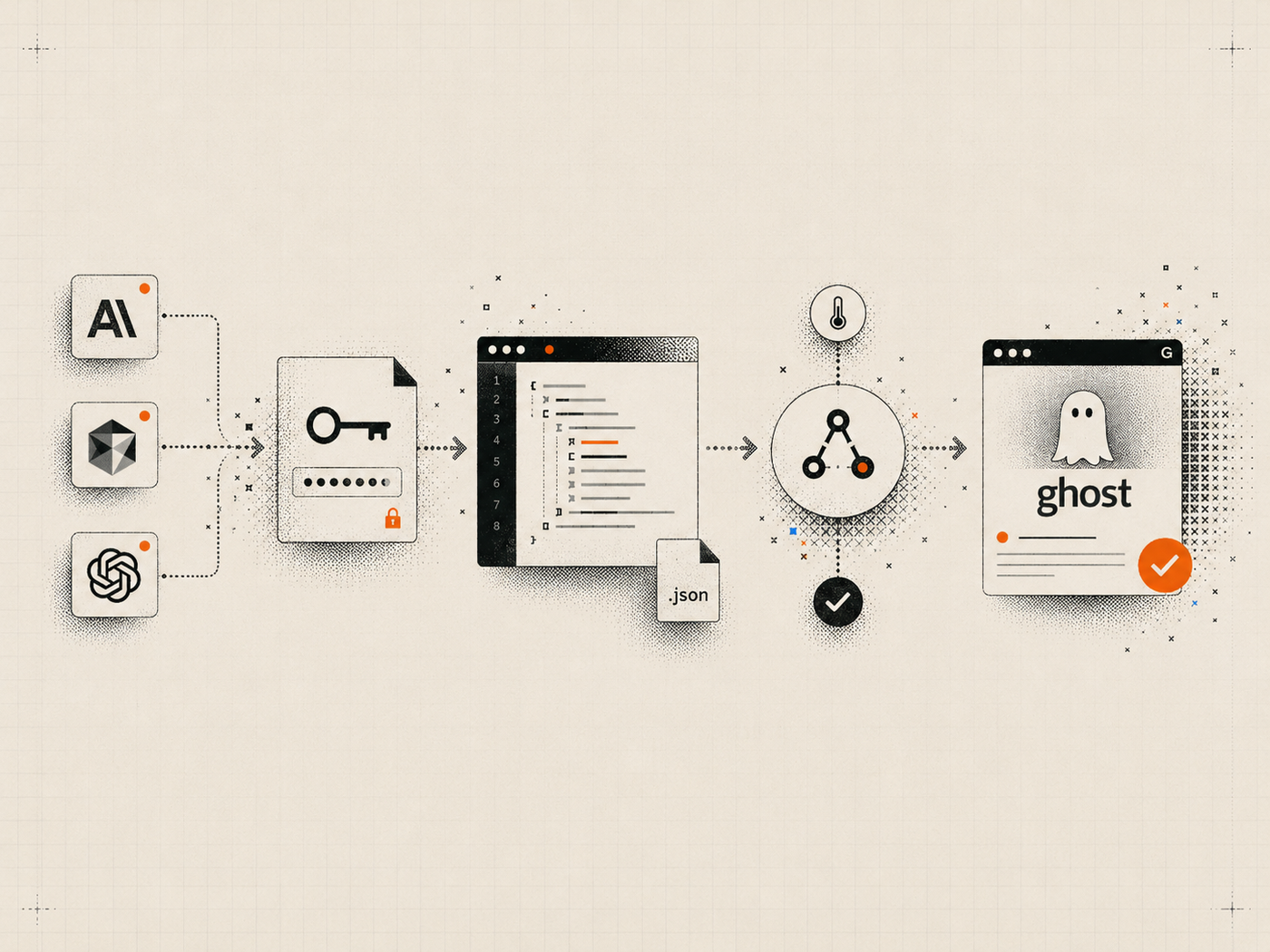
The installer prompts for the Ghost Admin API key without echoing it, detects supported client configurations, verifies the Ghost connection without writing content, displays a redacted plan, and asks before changing the selected client configuration.[1]
Run the command in a private terminal on the machine where the client is installed. Do not run setup in a recorded demo, shared shell, cloud log, or collaborative terminal where secrets may be captured.
Step 3: Preview the configuration with a dry run
A dry run lets you inspect the intended configuration without changing client files. Use read-only access for the first plan:
npx -y ghost-publisher-mcp@latest setup --url https://your-ghost.example.com --permission read-only --dry-run
Review the target client, configuration location, server name, package version, Ghost host, permission profile, and redacted environment-variable plan. A safe preview should not reveal the Admin key.
If the installer detects multiple clients, select only the ones you intend to use. Avoid adding the server everywhere simply because an application is installed.
Step 4: Connect Codex to Ghost CMS
Select Codex during interactive setup or pass the client option supported by the installer. The generated user-level configuration starts the local server through npx and supplies the Ghost URL, Admin key, and permission profile through the process environment.
Codex treats MCP as a tool-connection layer and skills as a separate workflow layer. OpenAI’s current customization documentation lists project guidance, memories, skills, MCP, and subagents as distinct mechanisms.[3] That means connecting Ghost does not automatically define how Codex should research, write, or review an article.
Restart the Codex surface after setup. Ask it to list or check the Ghost server connection rather than immediately creating content. Confirm that the response names the correct site and reports the read-only profile.
For a complete editorial method, pair the connection with a workflow such as the Source-Backed Blog Writer skill. The skill prepares a sourced package; the Ghost server performs separately authorized CMS actions.
Step 5: Connect Claude Desktop to Ghost CMS
Select Claude Desktop in the installer. It generates an MCP server entry that runs the local package and passes the required environment variables. Review the redacted plan before approval and restart Claude Desktop after the configuration is written.
In a new conversation, verify that the Ghost Publisher server is available. Begin with a read-only request such as checking the connection, listing a small number of drafts, or reading one known post. Do not test a production connection by creating disposable public content.
Claude Desktop and Claude Code are different client surfaces. Ghost Publisher’s installer currently targets Claude Desktop configuration. Claude Code also supports MCP and skills, but its configuration and extension model should be checked against Anthropic’s current documentation before assuming the same installer target or file path.[4]
Step 6: Connect Cursor to Ghost CMS
Select Cursor during setup and inspect the planned MCP JSON entry. The server should run locally over stdio and receive the site configuration through environment variables.
Restart Cursor after configuration. Use its MCP interface or a simple read-only request to confirm that the server starts successfully. If Cursor cannot discover the server, verify that Node and npx are available to the application’s process environment, not only in an interactive shell.
Do not copy the same raw key into project-level files that may be committed. Keep production credentials in the user-level configuration or a private secret mechanism supported by the client.
Step 7: Verify the Ghost connection without writing
A connection check should confirm the Ghost host, API compatibility, active permission profile, and optional configuration such as upload roots or public URL templates. It should not create a post, Page, image, schedule, or deployment.
Next, test a bounded read operation. List a small number of posts or retrieve one exact draft by slug. Compare the title and status with Ghost Admin so you know the client is connected to the correct environment.
If the result identifies an unexpected site, stop immediately. Remove or correct the configuration before enabling any write capability.
The article What Is a Ghost MCP Server? explains the client-server flow and why the registered tool surface matters.
Step 8: Expand permissions deliberately
Ghost Publisher registers different tools according to the selected permission profile. This is stronger than relying on a prompt that merely tells the model not to publish.
Read-only
Use for connection checks, post and Page reads, audits, site-health checks, change previews, and schedule planning. No content mutations should be registered.
Draft editor
Use when the client needs to create drafts, apply separately approved changes, or upload validated local images. Draft creation should remain draft-only.
Scheduler
Use when reviewed drafts need guarded schedule and unschedule operations based on exact revisions and an approved plan.
Publisher
Use only when the client must publish, unpublish, trigger a configured deployment, or modify published metadata through confirmation-sensitive workflows.
Move to the next profile because a real workflow needs the capability, not because setup appears successful. The guide to publishing to Ghost with AI covers the approval boundary for live transitions.
Manual configuration: when and how to use it
Manual MCP configuration is useful when the installer cannot detect the client, when you need advanced environment variables, or when policy requires reviewing every configuration line.
A typical entry defines the command as npx, pins or selects the package version, and supplies GHOST_URL, GHOST_ADMIN_API_KEY, and GHOST_PERMISSION_PROFILE. Optional values may define allowed upload roots, a deployment hook, and public URL templates.
Use the exact current examples in the repository rather than copying an old configuration from a blog post. Client schemas, package versions, and supported options can change. Keep the file private and restart the application after editing.
Common Ghost MCP setup errors
The client cannot find npx
Desktop applications may not inherit the same PATH as your terminal. Confirm that the installer selected a usable Node runtime or configure an absolute command path when the client requires it.
The Ghost URL is wrong
Use the canonical Ghost site URL expected by the Admin API. Remove embedded credentials and confirm HTTPS outside localhost.
The key belongs to another site
Create a new integration in the intended Ghost Admin. Do not troubleshoot by pasting the key into online decoders or public test tools.
The server starts but tools are missing
Check the selected permission profile. Read-only deliberately excludes draft, schedule, publish, unpublish, and deploy tools.
Configuration changes do not appear
Restart the client completely and confirm that the installer edited the user-level configuration used by the current application build.
An existing server entry is preserved
Setup should avoid silently overwriting existing configurations. Review the existing entry and use the documented replacement option only when you intend to replace it.
Security checklist after installation
- The key is absent from chat history, shell history, repositories, and screenshots.
- The package version and source are understood and intentionally selected.
- The initial profile is read-only.
- The returned Ghost site identity matches the intended environment.
- Upload roots, deployment hooks, and public URL templates are absent unless needed.
- Higher-risk tools are enabled only for clients and operators that require them.
- The integration can be revoked and regenerated quickly if exposure is suspected.
Frequently asked questions
Can I connect ChatGPT or Codex to Ghost CMS?
Codex can use locally configured MCP servers in supported surfaces. Product availability and configuration can change, so use OpenAI’s current Codex documentation and the Ghost server’s installation guide.
Can Claude Desktop publish Ghost posts?
Yes, when a connected server exposes publishing tools and the active permission profile allows them. Begin read-only and require separate approval before live transitions.
Does Cursor need the Ghost Admin key in the project?
No. Keep it in private user-level MCP configuration or another secret mechanism. Do not commit production credentials to the repository.
Can the same setup connect to several Ghost sites?
Use separate named server entries and dedicated integrations for each environment. Verify the site identity before every write-oriented workflow.
Should I use the latest package version automatically?
Use the current release during initial evaluation, then consider pinning an exact reviewed version in persistent configuration so an update does not silently change registered tools or behavior.
The practical takeaway
A successful Ghost MCP setup is not measured by how quickly an AI client can publish. It is measured by whether the connection is private, understandable, scoped, testable, and easy to revoke.
Create a dedicated integration, preview the redacted plan, configure only the intended clients, verify the site read-only, and expand permissions one workflow at a time. The current commands and client notes are maintained on the Ghost Publisher MCP page and repository.
References
[1] Ghost Publisher MCP installation and configuration
[2] Ghost Admin API authentication